

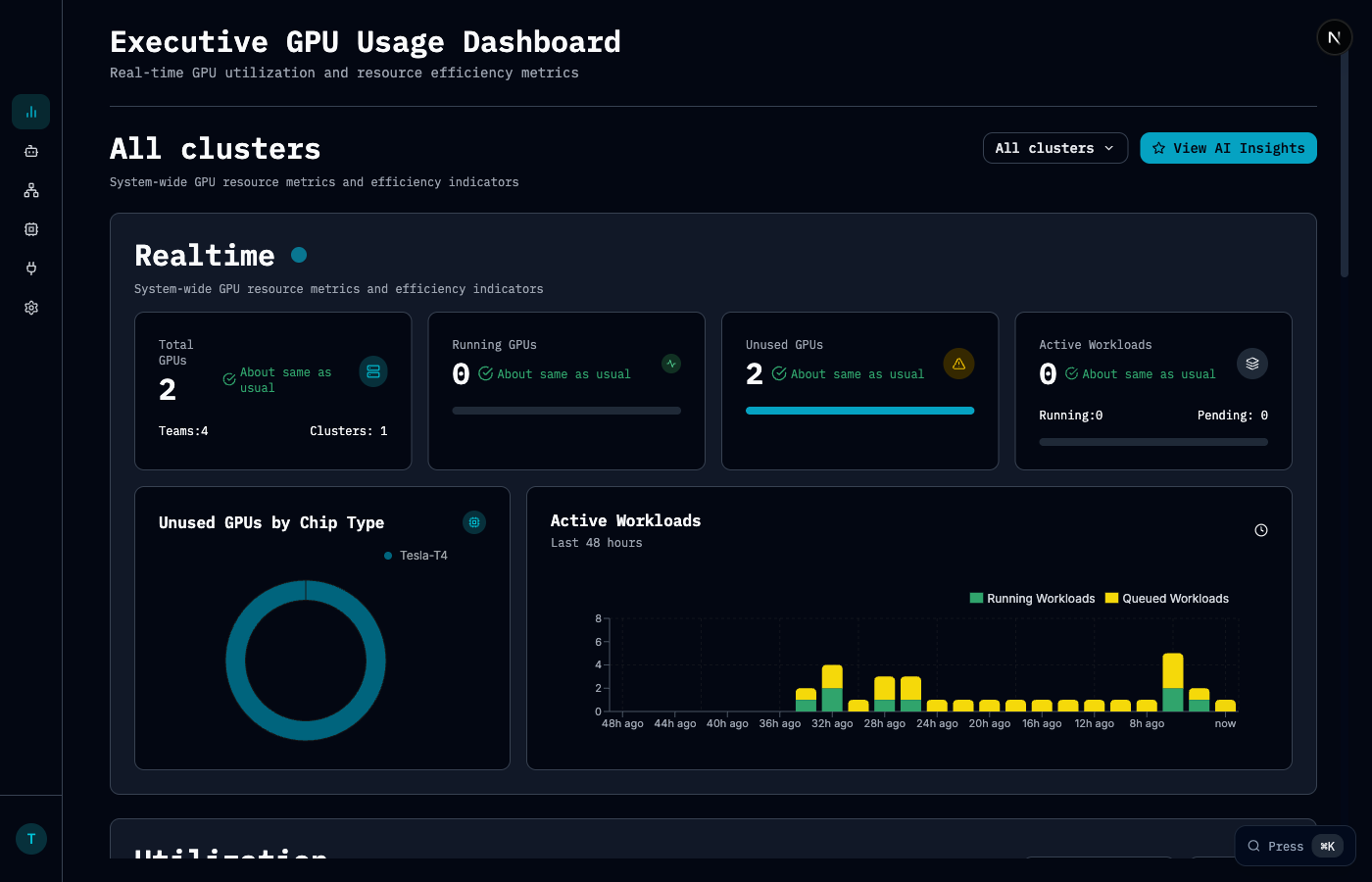
Executive GPU Usage Dashboard
Get a live pulse on your GPU fleet.Key Metrics
Features
- Cluster filtering — View metrics for specific clusters or all clusters at once
- Unused GPUs by Chip Type — Breakdown of idle GPUs by GPU model
- Active Workloads chart — Running vs. queued workloads over the last 48 hours
- Utilization trends — Track GPU usage patterns over time
GPU Spend & Efficiency Dashboard
See the financial picture behind your GPU usage — where the money goes, what’s being wasted, and where to optimize.Headline Metrics
Five KPIs give you the high-level story:Spend Breakdown
Three side-by-side cards show your top cost drivers:- By GPU Type — Which hardware is costing the most
- By Cluster — Which capacity pools have the highest spend
- By Team — Team rankings with utilization efficiency bars
Spend by Utilization Band
A horizontal bar chart groups your spend into utilization ranges so you can immediately see where efficiency breaks down:AI Insights
Chamber generates AI-powered analysis of your spend patterns, surfacing:- Critical waste alerts — Highlights the percentage of spend with low utilization and what to do about it
- Workload distribution analysis — Shows how workloads cluster across utilization bands
- Recommended actions — Specific next steps like GPU type prioritization, team-specific rightsizing, and auto-scaling policy suggestions
Spend Trends
Three time-series charts track how costs evolve:- Daily Spend — Total cost per day
- Spend by GPU Type — Stacked area chart breaking out hardware cost distribution
- Idle vs. Used Cost — Stacked area showing provisioned capacity vs. actual workload usage
Forecasts
See where spend is heading, broken down by:- Cluster — Projected cost per capacity pool
- GPU Type — Projected cost per hardware type
- Team — Projected cost per team
Team Leaderboard
A ranked table showing every team’s cost efficiency:
Click any team to jump to their detailed project view.