> ## Documentation Index
> Fetch the complete documentation index at: https://docs.usechamber.io/llms.txt
> Use this file to discover all available pages before exploring further.
# Workloads
> View and manage GPU workloads
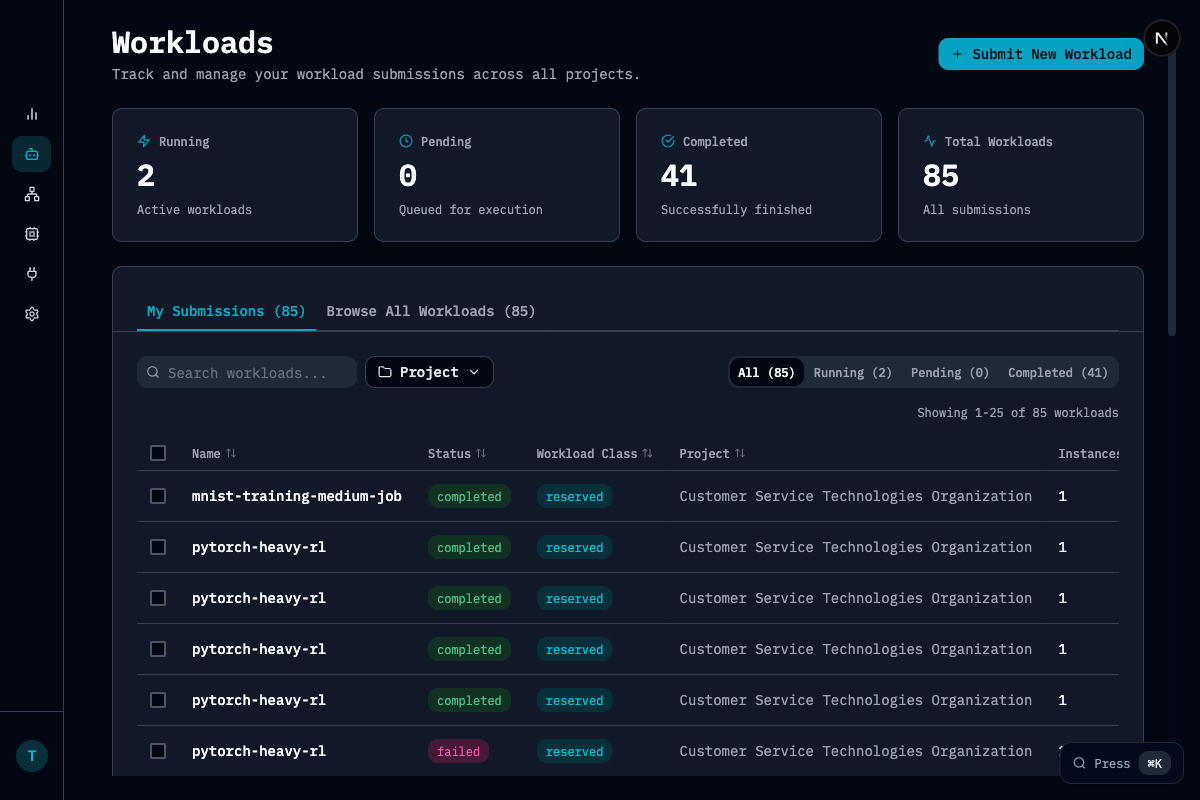
The Workloads page lets you track and manage all GPU workloads across your organization.
 ## Key Metrics
| Metric | Description |
| ------------------- | ------------------------------------------ |
| **Running** | Active workloads currently executing |
| **Pending** | Workloads queued for execution |
| **Completed** | Successfully finished workloads |
| **Total Workloads** | All submissions in the selected time range |
## Features
* **Search and filter**: Find workloads by name, status, project, or workload class
* **My Submissions vs Browse All**: Toggle between your workloads and all organization workloads
* **Status tabs**: Quick filter by Running, Pending, or Completed
* **Workload details**: Click any workload to see detailed information, events, and metrics
## Workload States
| State | Description |
| --------- | --------------------------------------- |
| Running | Actively executing on GPU resources |
| Pending | Waiting in queue for available capacity |
| Completed | Finished successfully |
| Failed | Terminated with error |
## Related Pages
Reserved vs elastic workloads
How workloads are scheduled
## Key Metrics
| Metric | Description |
| ------------------- | ------------------------------------------ |
| **Running** | Active workloads currently executing |
| **Pending** | Workloads queued for execution |
| **Completed** | Successfully finished workloads |
| **Total Workloads** | All submissions in the selected time range |
## Features
* **Search and filter**: Find workloads by name, status, project, or workload class
* **My Submissions vs Browse All**: Toggle between your workloads and all organization workloads
* **Status tabs**: Quick filter by Running, Pending, or Completed
* **Workload details**: Click any workload to see detailed information, events, and metrics
## Workload States
| State | Description |
| --------- | --------------------------------------- |
| Running | Actively executing on GPU resources |
| Pending | Waiting in queue for available capacity |
| Completed | Finished successfully |
| Failed | Terminated with error |
## Related Pages
Reserved vs elastic workloads
How workloads are scheduled