> ## Documentation Index
> Fetch the complete documentation index at: https://docs.usechamber.io/llms.txt
> Use this file to discover all available pages before exploring further.
# Managing Teams
> Create and organize your team hierarchy
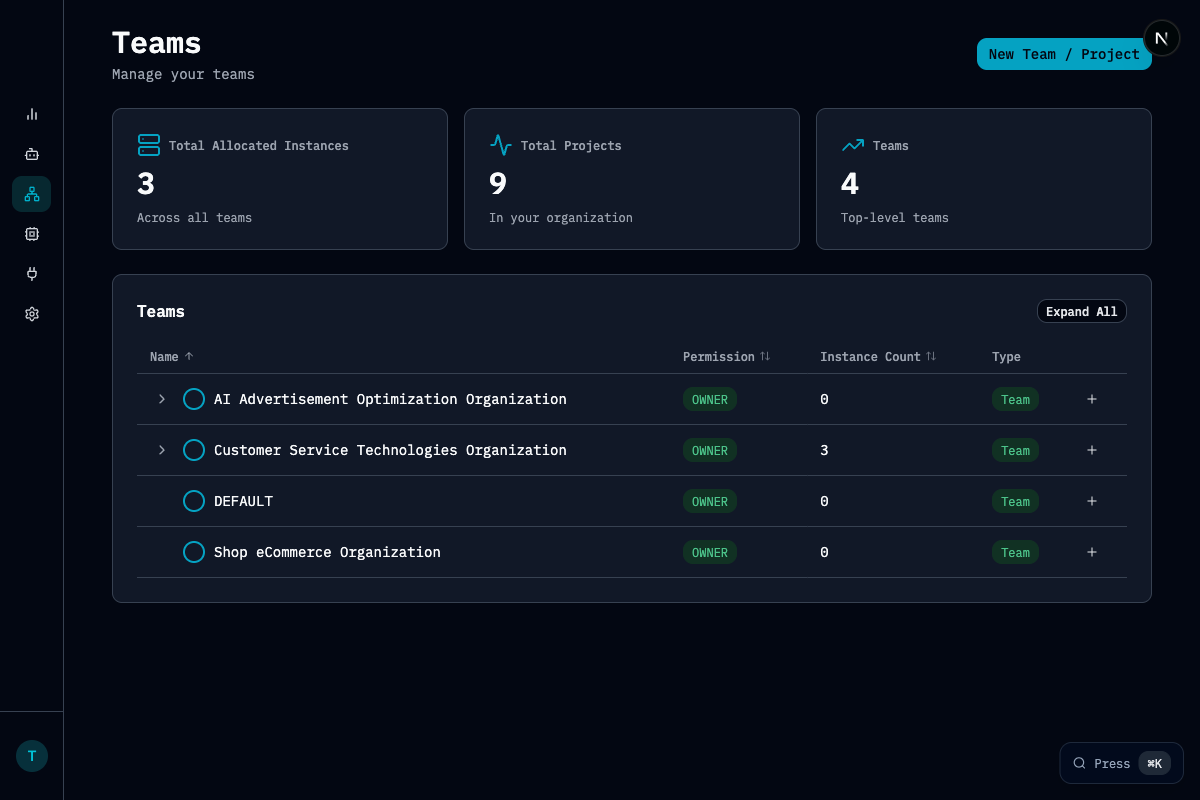
Teams represent teams, projects, or business units in Chamber.
 ## Key Metrics
| Metric | Description |
| ----------------------------- | ---------------------------------------- |
| **Total Allocated Instances** | GPU instances allocated across all teams |
| **Total Projects** | Projects in your organization |
| **Teams** | Top-level teams |
## Features
* **Hierarchical structure**: Organize teams with parent-child relationships
* **Permission management**: Control access with Owner permissions
* **Instance tracking**: See GPU instance counts per team
* **Expand/collapse**: Navigate the team hierarchy easily
## Team Types
| Type | Description |
| ----------- | -------------------------------- |
| **Team** | Top-level organizational unit |
| **Project** | Sub-team or project under a team |
## Managing Teams
* Click **New Team / Project** to create a new team or project
* Click on a team row to view details and manage members
* Use **Expand All** to see the full hierarchy
## Related Pages
View cluster capacity
Manage organization members
## Key Metrics
| Metric | Description |
| ----------------------------- | ---------------------------------------- |
| **Total Allocated Instances** | GPU instances allocated across all teams |
| **Total Projects** | Projects in your organization |
| **Teams** | Top-level teams |
## Features
* **Hierarchical structure**: Organize teams with parent-child relationships
* **Permission management**: Control access with Owner permissions
* **Instance tracking**: See GPU instance counts per team
* **Expand/collapse**: Navigate the team hierarchy easily
## Team Types
| Type | Description |
| ----------- | -------------------------------- |
| **Team** | Top-level organizational unit |
| **Project** | Sub-team or project under a team |
## Managing Teams
* Click **New Team / Project** to create a new team or project
* Click on a team row to view details and manage members
* Use **Expand All** to see the full hierarchy
## Related Pages
View cluster capacity
Manage organization members